Showing posts with label PC Tips. Show all posts

Tuesday, September 18, 2012

13 Internet Slang Terms You Need to Know


Internet Tips


13 Internet Slang Terms You Need to Know

http://blog.conduit.com

13 Internet Slang Terms You Need to Know

Keeping up with the latest online lingo is tough. If SMH, TBH, or FOMO don’t ring a bell, you better read on to figure out what the hell people are saying in cyberspace these days.


SMH: “Shaking My Head,” an expression of disbelief or disapproval. Example: My colleague just showed up to work in a mesh shirt. SMH

ICYMI: “In Case You Missed It.” Example: ICYMI, I started using frivolous acronyms.

TBH: “To Be Honest.” Used similarly to IMHO, which extends out to “In My Honest Opinion.” Example: TBH, the thought of Mitt Romney dressed as a polar bear kind of turns me on.

GIF: GIF stands for “Graphics Interchange Format,” which allows for a limited moving image, like a repeating moment from a movie. Once just the territory of “Saved by the Bell” memes, they’re now used by high-end publications like The Atlantic Wire.

BTW: “By the Way.” Alternatively, you can say “BT dubs,” but you’ll just end up sounding like a 13-year-old girl.

NP: “No Problem.” Used by people whose mothers never taught them to say thank you (or ty).

ROTF: “Rolling on the Floor.” When LOL just isn’t enough.

FOMO/JOMO: “Fear of Missing Out” and “Joy of Missing Out.” Used mostly by Type A startup entrepreneurs, like Anil Dash and Caterina Fake, who came up with the abbreviations.

AWK: “Awkward.” Used by self-conscious liberal arts students, and parrots whose owners are too lazy to teach them to talk.

YOLO: “You Only Live Once.” Coined by hip-hop star and unabashed nana-lover Drake, meaning that you should take risks and live life to the fullest — because if Steve Jobs couldn’t cheat death, the rest of us are probably screwed.

BB: A vaguely condescending term of affection, short for “baby” — the sort of thing said by a girl who’s not going to sleep with you because she really values your friendship.

TBT: “Throwback Thursday.” Usually used as a hashtag on Instagram and Twitter. #tbt is a chance to take a break from posting pictures of things that just happened.

IRL: “In Real Life” — meaning not on the Internet, where most of us secretly prefer spending most of our time. After all, you can’t just sign off 10 minutes into getting a drink with that dude you kind of knew in college. Sorry, Brad, you just don’t make me lol IRL.

What other wacky slang terms do you know of?

Tuesday, November 8, 2011

5 ways to make your Windows computer lightning fast

PC Tips

Today in Tech

5 ways to make your Windows computer lightning fast

By Tecca | Today in Tech – Tue, Nov 1, 2011

Trim-down and tune-up tips anybody can do

Nobody enjoys using a slow computer. You want your computer to be fast and responsive, whether it's brand spanking new or four years old. Follow our tips to keep you zooming along the information superhighway, regardless of your PC's age!

1. Run the essentials
 
The most basic thing you can do to speed up your computer is also one of the fastest changes you can make — close unneeded applications! If you're working in Excel, the odds that you'll need Word open at the same time are slim. Limit open software to what you are using at the time. This also cuts down on distractions and helps you get your work done more quickly.

If you have a stubborn application that won't close, treat it as a frozen application and kill it via Task Manager by hitting Ctrl+Alt+Del and selecting Start Task Manager.

Your computer automatically starts some programs when you turn it on. Some of these are necessary parts of the Windows operating system, but you may be able to disable some applications. Open the program in question and go into Properties or Options. Usually, auto-start options are found under General or Launch settings and will be labelled "Launch when Windows starts." Uncheck the check box and save the setting change to keep the application from coming back up the next time you reboot.

If you don't find an option like that, there's one more place to look for applications that auto-start. Be forewarned, this option is for advanced users — disabling essential startup items can have catastrophic results. Don't kill the auto-start settings for anything you don't recognize!


Scour your programs list for items that can be deleted

2. Fluff not necessary
 
Unless you've built your PC from scratch and manually installed Windows, hands have touched your computer before. Heck, you may have even had some kind of setup service performed at the store immediately following your purchase. The downside to all this pre-use activity is that applications that you will likely never touch have likely been installed and are running on your computer.

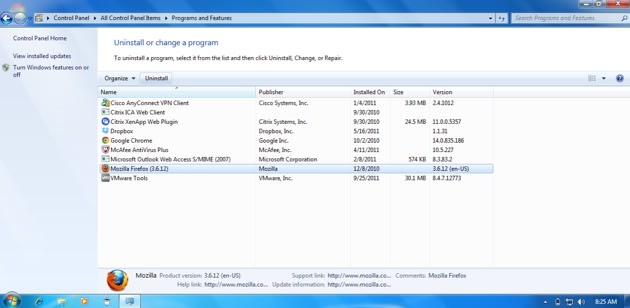
To deal with this preinstalled mess, go to Control Panel > Programs and Features and uninstall the unwanted items. Things to avoid removing include standard Microsoft software bundles such as Office, software you have actively paid for such as Photoshop, and your antivirus package. If you're not sure where something came from or what it does, do your online homework and search for software's name before uninstalling — better safe than sorry!

Extra software can also end up on your computer after you install applications you actually want. As you go through the installation process, be sure to keep your eyes peeled for additional install prompts. These will look something like "Install Utility Name for Internet Explorer/Firefox" with a check box next to it. Make sure the checkbox is not checked, to keep the junk software at bay.

3. Safe and simple browsing
 
Current versions of popular browsers (such as Internet Explorer, Firefox, and Chrome) let you do much more than the mere web surfing of their predecessors: extensions and add-ons let your browser do all sorts of things. Have you set up something in your browser that displays an unread emails count icon, or maybe clips web sites to Evernote with one touch? Then you're using extensions!
Did you know these extensions require additional resources beyond the standard browser requirements to run? You can disable these items when you want to speed up your computer (and your browser). The process varies a bit based on your browser:
  • Internet Explorer and Firefox Go to Tools > Add-ons or Manage Add-ons (depending on your version) and disable individual add-ons that you don't use.
  • Chrome Right-click on any of your add-on icons (located between the address bar and the wrench icon) and select Disable. You can also click Manage Extensions to go through your installed/enabled add-ons in one page.

Browser add-ons can seriously hinder your speed

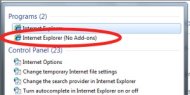
Internet Explorer comes with an option to launch entirely without add-ons, so you don't have to disable individual add-ons on a session-by-session basis. To access this version of IE, click the Start Button and type in Internet Explorer. You should see two versions come up: Internet Explorer and Internet Explorer (No Add-ons). Select the second version, and IE will launch without any add-ons or plugins. To use a version with add-ons, simply launch IE from your regular shortcut.

4. Timing your antivirus scans
 
You may think that running your antivirus program at all times is the epitome of safe browsing. While it's true that running scan jobs during peak hours may keep your computer marginally safer, it comes at a serious expense to speed. Most antivirus packages have a background task that runs at all times and scans new files when they are downloaded, while operating with a lower demand to your computer's resources.

To keep your top browsing hours free of any unneeded antivirus burden, configure full scans during hours that you are definitely not on your computer.
  • Workday hours (9 a.m.-5 p.m.) This works best if you use a different computer for business purposes.
  • Early evening (6-7:30 p.m.) Scan while cooking dinner or unwinding after the workday.
  • Late night (1-4 a.m.) Let it run while you're asleep.

Find the hours that work best for you, and configure your scanning schedule accordingly. Make sure that your real-time or on-demand scanning is also enabled when setting up your schedule!

5. Add a physical boost
 
If you've done everything above and your computer is still sluggish, your last option is to upgrade the memory (RAM) in your computer. RAM acts kind of like short-term memory for a person, giving your programs more room to keep data while they're running. However, figuring out what kind of RAM your computer needs and installing it can get complicated: so if you want to upgrade your computer's memory, we recommend calling your local computer repair shop and letting them take care of it.

Good housekeeping
Keeping your computer in top form requires regular maintenance. Follow a maintenance schedule for your standard activities, perform a little seasonal cleanup, and use Tecca's maintenance tips to keep your PC at its speediest!

This article was written by Liz Patt and originally appeared on Tecca

Monday, August 22, 2011

Tips for Longer-Lasting Laptop Batteries

PC Tips


Tips for Longer-Lasting Laptop Batteries

by Dave Johnson
Thursday, August 11, 2011


provided by
bnet_170x33.jpg

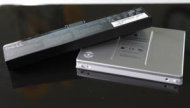
Hardware budgets are feeling the pinch of our tepid economy, and many companies are making employees use their laptops longer. If you are starting to tell your folks to keep plugging along with their laptops for four or five years instead of just three, you might be running into an unexpected expense: dead laptop batteries.
More from BNET.com:

• 5 Things to Never Say in Email


• The 10 Best iPhone Productivity Apps


• How to Squeeze More Life Out of Your Company Laptops
Well, to be fair, your laptop's batteries probably aren't completely dead. But since Lithium Ion batteries tend to lose about 20% of their capacity each year, a typical three-year-old laptop might only get about an hour or so on a charge, which might not even get your folks through an entire meeting. Here are four simple tips to forestall the day that you need to replace those batteries:

Keep it cool. 

Heat is the primary killer of batteries. Tell your employees to be careful not to let their laptops overheat. One common way that happens is packing a running laptop into a backpack or briefcase. If the laptop fails to go to sleep (and let's face it — sleep glitches are common), then the laptop can get crazy hot in an enclosed space. You can almost smell the loss of battery longevity.

Recondition your battery regularly. 

Most laptop manufacturers (except Apple) don't generally tell you about this, but a simple process known as reconditioning (or occasionally, recalibrating) can breathe new life into your laptop battery and add capacity back. To do that, turn off your screen saver and any other power management tools which put your PC to sleep. Fully charge the laptop, and then let it run all the way down — right until it powers down due to lack of juice. Then charge it back up again and restore your power management stuff. Do this every few months (such as three times a year).

Remove it when you're not using it. 

When you leave your laptop plugged in at your desk all day every day, the battery never gets a chance to discharge and recharge — which is critical to its long-term health. Thankfully, there's a simple solution: Remove the battery. As long as your laptop is connected to AC power, the battery isn't necessary; it'll run without it. Just remember to pop it back in before you take your laptop on the go.

Start with a super-sized battery. 

When you purchase your next round of laptops, upgrade to the extended-life battery. Not only will it give you significantly longer runtime to start with — great for road warriors and anyone else who works away from the office a lot — but the inevitable loss of battery life will have a less pronounced effect. The added cost of the larger batteries is worth the investment, because they end up lasting significantly longer.

Sunday, August 21, 2011

Upgrade Your Life: Revive a dying laptop battery

PC Tips

image from  www.pchelp.com

 Upgrade Your Life: Revive a dying laptop battery

Laptop battery wearing down? In this week's episode of Upgrade Your Life, Yahoo! News' Becky Worley shows us how to help batteries last longer ... and what to do when they run out!

First, the basics

Most laptops use batteries that can last for 3-5 years, or about 1000 charges. (A premium laptop's battery might last longer.) Every time you charge your battery, the total capacity of the battery is diminished. Originally it may have had a run time of 3.5 hours, but after a year it'll run out of juice at 3 hours, even on a full charge.

If your battery capacity has diminished, there are a few things you can do about it. First, you have to correctly gauge how much capacity has been lost. There are free downloads to do this job, like Battery Bar (for Windows PCs) or Coconut Battery (for Macs). These will compare your battery's current maximum capacity to how long it lasted when it was new.
 
(UPDATE- we originally recommended Battery Eater and while the program works great, their download site has been compromised and we are recommending an alternate program, Battery Bar downloadable from CNET.)

Calibrating your Battery

You can't miraculously reconstitute your battery's capacity. It loses power over time due to chemical reactions taking place in the battery, as it chugs along powering your laptop. You can't undo those changes, but there is one common battery issue you can fix: In many laptops, the operating system's battery meter gets out of sync with how much juice the battery actually has.

Imagine if the gas gauge on your car dashboard was misreading how much gas you actually had in the tank. 

You'd either run out of gas when you thought you had a quarter of a tank left, or you'd be filling up too frequently. In your laptop, this can mean your laptop shuts down abruptly when the meter says you have 30 minutes left. Or else the meter might warn that you only have 2 minutes of battery life left and shut your laptop down, when it really has another 20 minutes remaining.

Recalibrating gets the battery meter to correctly read the current state of the battery, so you and the operating system know where you stand with existing battery life.


How to recalibrate

First, charge your laptop's battery to full, and leave it that way for at least two hours. Then unplug your laptop, and set its power management settings to never turn off or lower the monitor brightness. (HP has instructions for how do to this on Windows 7 and Vista, as well as Windows XP, while Apple has instructions for Mac laptops on their site.)

You want to drain the battery completely, then let your laptop sit for at least five hours this way -- like, say, overnight. (Just be careful and mute the volume, since some laptops make a warning sound when they're about to run out.) Afterwards, charge it up again, and you should notice a more accurate portrayal of your battery capacity. In some cases, you may even get more life out of it.

Best practices to maintain battery life

You'd think that the best way to keep your laptop's battery from wearing out is to not use it. Right?

As it turns out, batteries are like muscles; they need to be worked out regularly to stay healthy. Ideally, you'd use your laptop unplugged at least once a day, like on a train or bus commute or on the couch in front of the TV. If you're not going to use it, constantly charging your battery is a bad idea; HP recommends on their website that if you're going to leave your laptop plugged in or put up in storage for more than two weeks, you should take the battery out of your laptop.


Past the expiration date


So when is it time to throw out that old battery? The answer, surprisingly, is "never." Laptop batteries contain lots of toxic chemicals, and should never end up in landfills. Fortunately, e-stewards.org has a list of environmentally responsible recyclers that will take your old battery with no fuss.
When is it time to replace your battery, then? Use the free utility apps Becky mentioned, and when they say that your battery can only hold around 25% of its original capacity it's probably time for a new one. You can buy a replacement battery from the original laptop manufacturer, and there are plenty of places online that sell discounted PC laptop batteries, like Laptops for Less and Batteries.com. Owners of newer Mac laptops can get their laptop's non-removable battery swapped out at any Apple store, with a scheduled appointment.

Tuesday, May 24, 2011

10 Free Ways to Speed Up Your PC


10 Free Ways to Speed Up Your PC


By GalTime Nerd Chick Andrea Eldridge


Does it feel like you can make a pot of coffee and clean the kitchen all in the time it takes for your computer system to boot up?  Do you find yourself daydreaming of dropping it off the top of your office building while you’re waiting for web pages to load?  If it seems like your computer is running slower every day, here are some things to do to get your “old reliable” running in tip-top shape.  Of course, budget-savvy Nerd Chicks are always looking for ways to save some dough, so we’ve made sure they are all free.

1.  Get Rid of the Nasties

 Viruses and spyware don’t always break your computer, but they do always slow it down.  They’re more common than you may think, and can hang out in your system, gumming up the works, without you even knowing it.  Microsoft Security Essentials is a great, easy, all-in-one solution to keep your computer healthy and running in top form.  Download it here.

2.  Update Your OS

Windows issues updates all the time.  These can patch holes in the software, closing vulnerabilities that viruses and spyware exploit, and generally make Windows run better.  If you’re running Windows XP, right click on the My Computer icon on the desktop, select Properties and click on the Automatic Updates tab.  Make sure you set them to download and install automatically.

3.  Purge “Bloatware"

 Still have that Norton Trial software installed from when you bought your machine three years ago?  Get rid of it!  Every time it pops up a window “reminding” you to buy it, I’m guessing a little voice in your head mutters unpleasant things.  It’s also slowing down your system as the antiquated software runs in the background.  Search for “Norton Removal Tool” (or “McAfee Removal Tool”) to make sure that you get the software fully uninstalled.

4.  Speed Your Startup

 MSConfig is a tool built in to most versions of Windows.  Even novice computer surfers can use this tool to stop programs from starting automatically every time you boot up.  While certain things are necessary for Windows to function, if your system is trying to turn on iTunes, your printer, and Adobe every time it boots up, the poor thing’s got a lot of things to get going before it can launch your Sudoku.  Click the "Start" button.  If you have a search option, type “msconfig” into the search field.  If you don’t have a search option, but have a “Run” button on the startup menu, click that instead. When you do this, a window will appear on screen with the word "Run:" next to a blank text field.  Type "msconfig" in the blank text field and press "Enter". Click the "Startup" tab at the top of the menu.  Uncheck the boxes next to programs that you don't need during startup – but only programs you recognize!  Click the "Apply" button, then select "OK", and restart your computer.  I can almost hear your computer sighing in relief from here.

5. Defrag Your Hard Drive

Every time you save a file, or update software, your hard drive stores each new thing in chronological order.  This means that when you launch Word, your system has to search all over your hard drive to find all the pieces that have been stored over the months, or years.  Defragging simply means that your hard drive will take all the “like” things and put them together, allowing programs to launch and work faster.  Windows 7 comes configured to defrag automatically, however Windows XP users will need to start the process manually.  From the Start menu, right-click the “My Computer” option.  Select “Manage” and choose disk defragmenter under the Storage section. Keep in mind that the process can take several hours, so set it to run at night.  Also, remember to disable your system’s hibernate mode & screen saver before starting.  When the process is complete, restart your PC.

6.  Repair the Registry

Your system’s registry is like your hard drive’s table of contents.  If there are incorrect entries, it can take your drive longer to find all the pieces of data it needs to launch and run programs.  Glary Utilities is a great free application that you can install to quickly and easily fix registry errors and optimize your system’s performance.  Download the free version here.

7.  Clear Out the Cookies

Every time you visit a website, it stores little pieces of itself, or programs, on your system.  The idea is that the next time you visit the site it will load that content faster.  The problem is that it’s rare that we return to the same sites and see the same things over and over again.  Instead, the process of digging through several MBs of temporary internet files will lead all websites to load more slowly.  Clear out your cache with CCleaner , a top rated free software program for cleaning out temporary files and making your system run at its best.  One tip: use the cookies tab to select cookies you want to keep from sites you visit often and/or want to continue to login to automatically (like your email, or your bank).

8. Clean it, No Really!

 Your computer has a fan in it that draws in air to cool the CPU and components.  If this fan or vent becomes clogged with dust, pet hair, or other nasties, your system  can overheat, causing it to run more sluggishly and eventually break.  Grab a can of air and take your PC outside for a field trip.  Don’t just blow into the intake vent: open the case, don’t blow air too closely at the components, and blow dust away from the case.

9.  Ditch Internet Explorer

There are many alternative browsers you can use to access the Internet.  Most techies agree that Google’s Chrome is the fastest option that doesn’t compromise compatibility.

10. If all else fails…

A surefire way to ensure that your system is running as close to good-as-new as you can hope to get is to back up your data, format your hard drive, and reinstall Windows.  Keep in mind that you will need to reinstall all of your software, including office.  Don’t forget to install your anti-virus and anti-spyware before surfing the net!
Getting on a regular maintenance schedule will save you, and your trusty computer, much pain and suffering.  Especially if these tips keep you from drop kicking your PC off the roof!  I

f you’re struggling with any of these steps, or want more info, check out my website, www.callnerds.com.